Connecting to Backend SQL Server
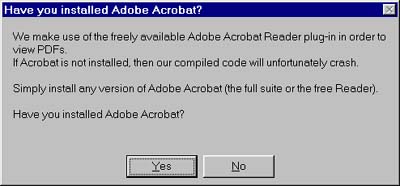
Before running Prosite Systems application, you must install Acrobat Reader (free) on your system, if it is not already installed. Running Prosite Systems without Acrobat Reader will unfortuately crash the application.
|
|
|
1
Click on Start > Programs > Prosite Explorer (folder) > Prosite Explorer shortcut to start the program.
|
|
2
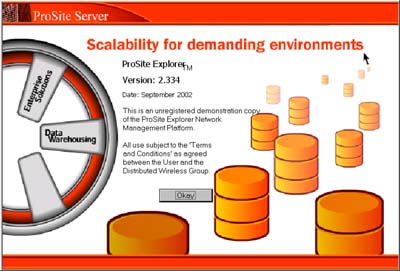
The application splash window appears. Click OK to proceed.
|
|
3
Acrobat Reader must be on your system before running Prosite Explorer. Click Yes if you have already installed Acrobat Reader. Otherwise, click No, then click OK to close the next window and quit the application. You must download and install Acrobat Reader before running Prosite Systems.
|
|
4
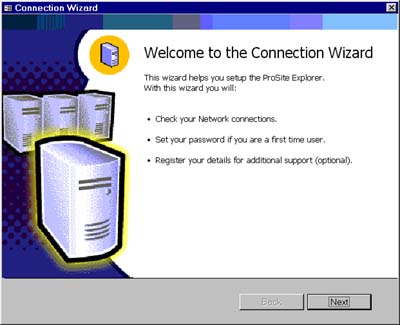
If you clicked Yes in the previous step, the wizard on the left will start. Click Next twice to proceed.
|
|
5
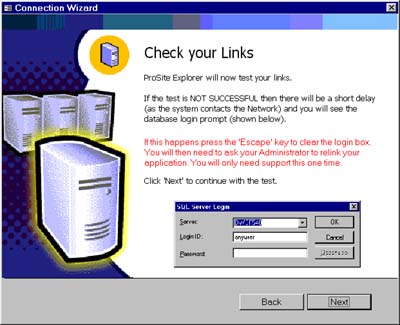
Read carefully the instructions of this window, then click Next.
|
|
6
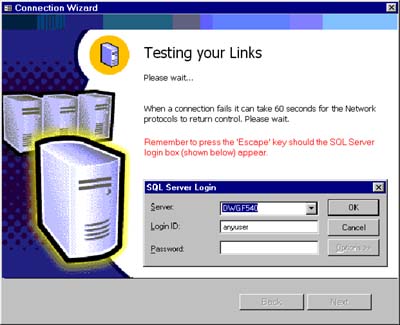
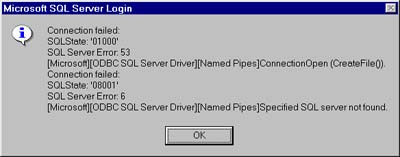
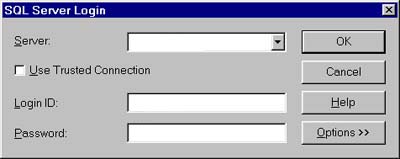
The linking process has started. If the SQL server login window with a failed connection message appears (see image below to the left), click OK and go to step 12. Otherwise, go to the next step.
|
|
7
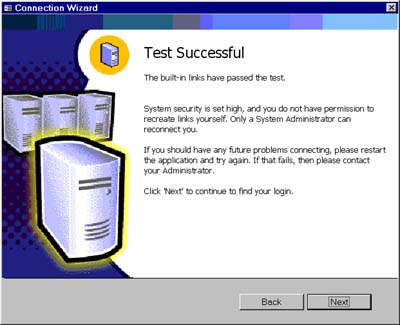
If you get the window on the left, it means that the linking process is successful. You are now linked to the backend SQL server. Click Next.
|
|
8
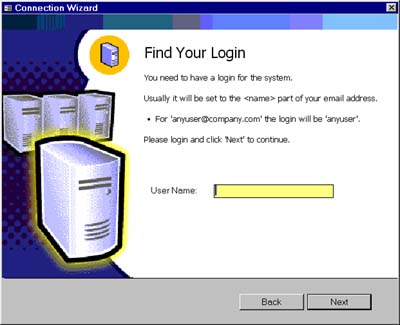
For the User Name field, enter DWG or dwg and Click Next.
|
|
9
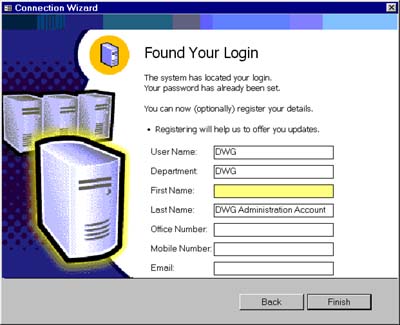
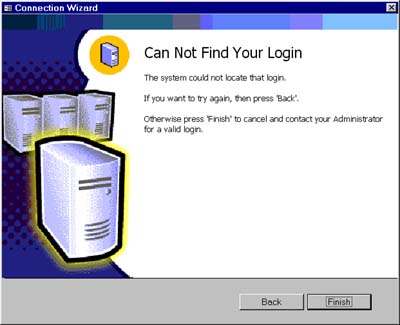
The login information you entered will be tested against the database.
- If successful, the first window will appear with optional fields to be completed. Click Finish to proceed.
- If the login verification failed, the bottom window wil appear. Click Back to enter DWG or dwg as the User Name. If you are still experiencing problems, click Finish and email Support for a valid user name.
|
|
10
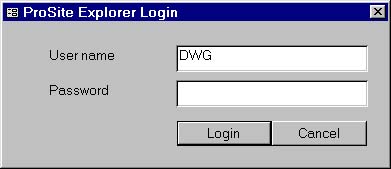
The login window on the left appears. Enter the following information:
User Name: DWG or dwg
Password: unknown
Click Login.
|
|
11
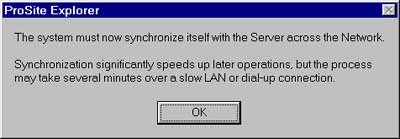
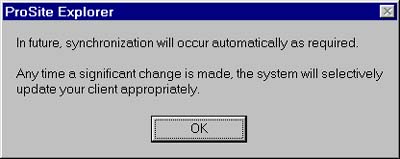
Click OK to start the synchronization process. This may take several minutes over a slow LAN connection.
After the synchronization process, the bottom window will appear to inform you that synchronization will occur automatically from now on. Click OK.
Congratulations! Now, you can evaluate the application.
|
If the linking process of step 6 failed, follow the steps below.
|
|
12
Press ESC key (Escape) of your keyboard or the Cancel button.
|
|
13
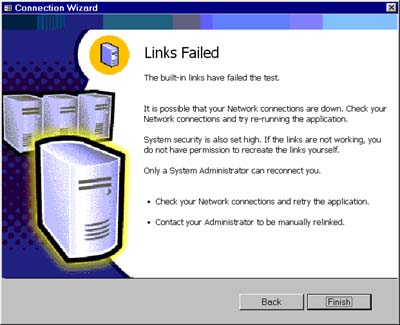
If you get this window, it means that the linking process has failed. Click Finish.
|
|
14
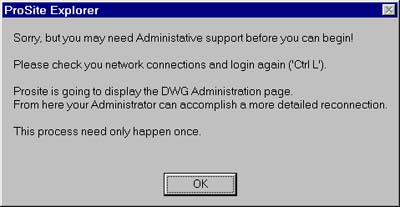
Click OK.
|
|
15
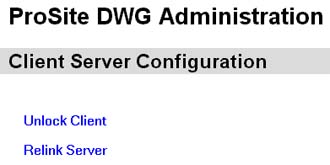
Click Relink Server to manually connect to the backend SQL server.
|
|
16
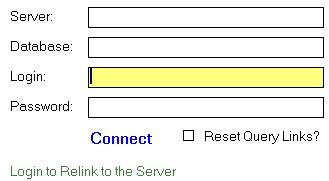
Enter the following information:
Server =
Database =
Login =
Password =
Then click Connect. Please be patient. It will take few minutes to complete the process.
|
